
Help
Connect iCloud with an app-specific password
TotalCalendar connects to iCloud Calendar directly, so your iCloud events can have guests and send invitations. Apple lets apps like TotalCalendar sign in with an app-specific password: a separate password for one app, which you can revoke at any time. TotalCalendar never asks for your Apple Account password.
Before you start
Your Apple Account needs two-factor authentication turned on. Most accounts already have it. You can check under Sign-In and Security at account.apple.com.
Create the password
-
Go to account.apple.com and sign in with your Apple Account.
This is Apple’s own website. Your Apple Account password goes to Apple there, never to TotalCalendar.
-
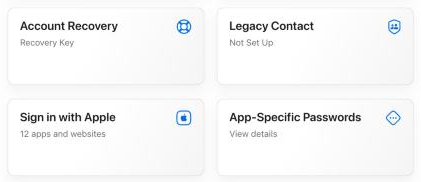
In Sign-In and Security, choose App-Specific Passwords.
-
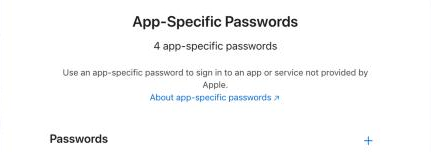
Choose the add button (+) beside Passwords.
If you have no app-specific passwords yet, Apple shows “Generate an app-specific password” instead.
-
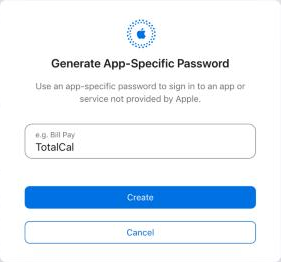
Give it a name you will recognise, such as TotalCalendar, then choose Create.
Apple may ask for your Apple Account password again to confirm.
-
Copy the password Apple shows you.
It looks like xxxx-xxxx-xxxx-xxxx. Apple shows it only once; if you lose it, create another.
-
In TotalCalendar, choose iCloud, enter your Apple Account email, paste the password and choose Connect.
iCloud is on the first screen TotalCalendar shows, and later in Settings → Accounts → Add Account → iCloud….
Good to know
- Changing your Apple Account password revokes every app-specific password. TotalCalendar then asks you to sign in to iCloud again: create a new password and enter it there.
- To disconnect, remove the iCloud account in TotalCalendar (Settings → Accounts), then revoke its password at account.apple.com under Sign-In and Security → App-Specific Passwords.
- Where it is kept: TotalCalendar stores the password in your Mac’s Keychain and uses it only to talk to iCloud’s calendar server. The Privacy Policy has the details.
- Limit: Apple allows up to 25 app-specific passwords at a time.
Apple’s own instructions: Sign in to apps with your Apple Account using app-specific passwords.